Use PhotoCraft online in your browser. Edit a PNG, try a simple PSD text example, and export your result—with practical guides to help you get started.
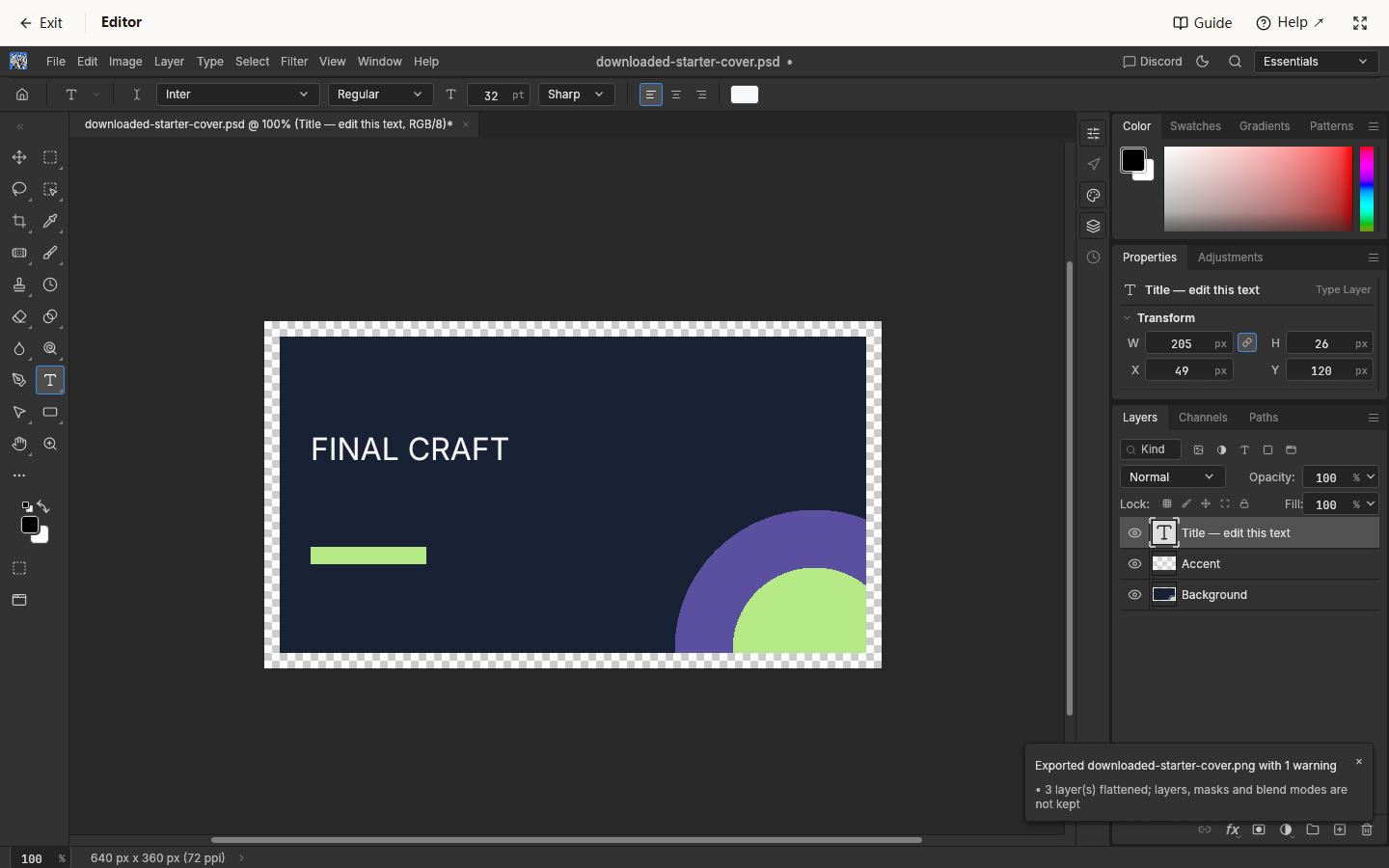
Inside the workspacePhotoCraft v0.6.0 · Actual editor preview
Meet the editor
What is PhotoCraft?
PhotoCraft is a free, open-source image editor from the ArtCraft family, available for desktop and Web. PhotoCraftTools provides an independent entry point to PhotoCraft online, with practice files and guides that connect a small editing task to a finished PNG.
Start with our examples to learn the controls before trying an important document. The PhotoCraft editor runs in a dedicated workspace; this page helps you choose what to try. We are not affiliated with or endorsed by PhotoCraft or ArtCraft. Read about this site and its sources.
01
Three tasks, three useful results
Try a PhotoCraft editing task
A title that’s yours
Edit a simple PSD title
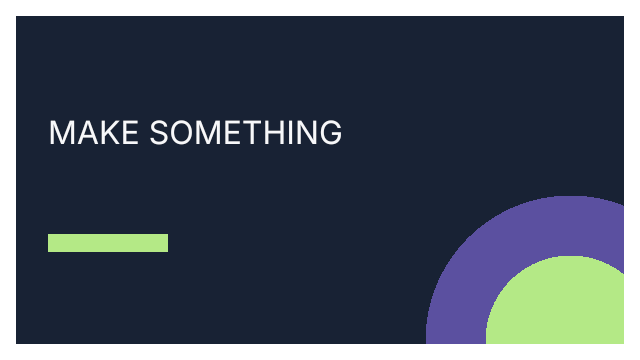
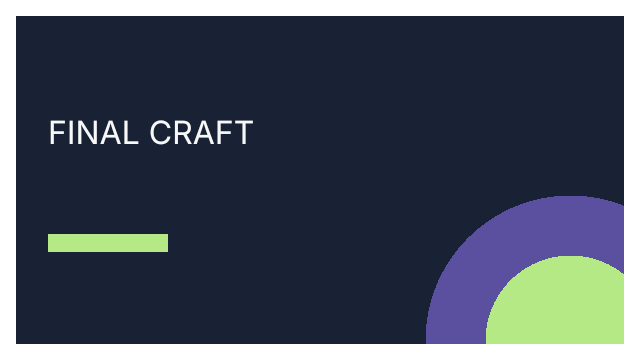
Turn the landscape cover into an announcement for a creative project. The downloaded PSD contains a background, an accent and a separate title layer. Its original “MAKE SOMETHING” headline becomes “FINAL CRAFT” in the actual export shown here.
To edit PSD text in PhotoCraft, choose “Title — edit this text”, activate the Type tool, then click the headline on the canvas. Select the existing words, type your replacement and apply it with the toolbar checkmark. Inter Regular is included in the editor; check that the letters look complete and fit the composition.
Your output is a landscape PNG ready to view or share. The square announcement and portrait poster offer other layouts for this same title-editing task. Start with a short headline so you can spot clipping before export.
Before · Original PSD titleAfter · Actual exported PNG
Point out one detail
Mark a date on a PNG
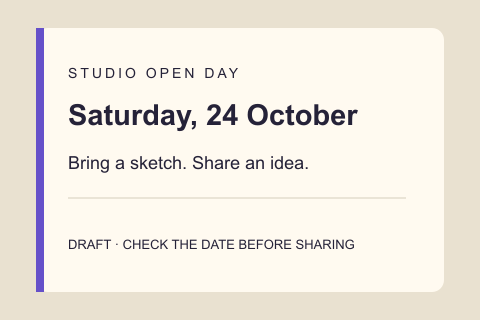
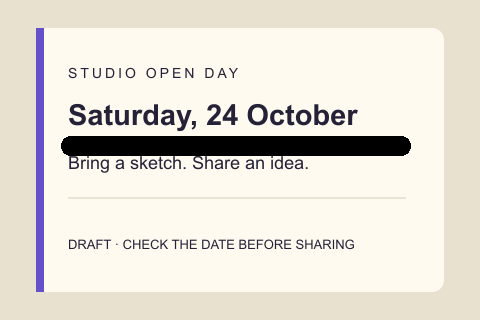
Input · Invitation draftOutput · Brush underline
The studio invitation has a date to check before sharing. Download the small PNG, open it inside PhotoCraft and choose the Brush tool with B. Drag beneath the date to add a visible mark, then export.
Compare the downloaded result with the input: the underline should appear without hiding the date. This exercise changes pixels; the printed words remain part of the image. Keep the original if you want to repeat the practice with a different mark.
Input · Already transparentExport on a light backgroundSame export on a dark background
The input badge already has transparent corners and translucent rings. Open it, export PNG, and inspect the downloaded image against light and dark backgrounds as shown here.
The corners should reveal the background; the rings should blend with it while the central star stays clear. Our exported file retains the input’s transparent and semitransparent alpha values. This checks existing transparency. Background removal from ordinary photographs is outside this exercise.
Pick the PSD for editable words, the invitation for a brush mark, or the badge for transparency. Download the file to a location you can find again. After downloading, open the file inside the editor yourself.
02
Open inside the workspace
Use Open PhotoCraft, wait for the editor’s workspace to appear, then choose File > Open. Select your downloaded file. Check the canvas against its preview so you know you are working on the intended document.
03
Complete one clear task
Replace the PSD headline or draw a mark on the invitation. For the badge, leave the image unchanged to check transparency. Finish an active text edit with the checkmark before moving to the export menu.
04
Export and inspect
To export PNG from PhotoCraft, choose File > Export > Quick Export as PNG. Locate the browser download, open it and compare the result with your intended change. Keep it before closing the workspace.
Choose your starting point
Choose the right file for your first edit
Words to replace? Pick the PSD.
Text already printed in a PNG is normally a collection of pixels. Clicking those letters with the Type tool does not turn them into editable words. Our simple PSD keeps its headline on a text layer, making it the better starting point for a title change.
Marks or transparency? Pick a PNG.
Use the invitation to practice a brush stroke, or the badge to inspect existing transparency. The listed dimensions describe our small practice files, not a canvas or file-size limit. Check unfamiliar files separately rather than assuming they will behave like these examples.
Keep an editable starting point.
A PNG export is a finished image, without the PSD’s editable layer structure. Keep your original PSD separately. Before leaving, check that your exported image contains the changes you need; a preview still visible in the workspace is not a downloaded copy.
When something feels stuck
Help with your first edit
The layer is selected, but nothing changes.
Selection alone does not edit words. Activate Type, click the actual headline, select its text and type. Apply the checkmark. If the result looks wrong, compare the font with Inter Regular and shorten the replacement before trying a more complicated layout.
Where did the exported file go?
Open your browser’s downloads list and look for the newest PNG. Your settings may prompt for a destination. Open that file and inspect its content, especially if several downloads have similar names. Confirm the result by opening the downloaded image.
The workspace has not appeared.
Wait for the editor’s own startup message. If it reports a problem, consult compatibility and rendering help. Reload and WebGL fallback restart the session: export existing work first, or cancel the prompt to keep editing.
Is PhotoCraftTools the official PhotoCraft website?
No. This is an independent access and learning site. For the upstream project’s announcements, downloads and ownership information, follow the official PhotoCraft page. Our About page explains the relationship and lists sources.
How does the web editor differ from the desktop app?
This site embeds a fixed PhotoCraft Web version in your browser. The desktop app is installed separately through official downloads and may have a different version or behavior. Consult the tested scope before relying on a desktop feature here.
Can I use PhotoCraft online on a phone or tablet?
These information pages adapt to narrow screens, but we have not verified editing on real phones or tablets. Start on a desktop browser with a keyboard and pointer for the exercises shown here.
Can I recover an unfinished editing session?
This site does not automatically save or restore documents. Export before a confirmed departure, refresh or renderer change. Canceling a workspace exit prompt keeps the current session; it does not create a backup for later.
What should I expect when trying a complex PSD?
Work on a copy and compare the opened image carefully. Fonts, effects, linked assets and specialized color modes fall outside our simple examples. A file opening successfully does not prove every layer or visual detail survived.
Where can I find source code or report an issue?
The official GitHub repository contains PhotoCraft’s source and issue tracker. For an editor report, include your browser version, reproduction steps and the Web version listed in our workspace. Share a nonprivate example when possible.
Try PhotoCraft online. Keep your first result.
Choose a practice file, try one focused task and check your downloaded PNG. Your first editing session can start right here.
 PhotoCraftTools