 PhotoCraftTools
Your PSD · Your browser · No installation
Open a PSD File Online
Open a PSD file online without installing Adobe Photoshop. The interactive PhotoCraft Web editor runs directly on this page: select File > Open in the editor below to choose a local PSD, inspect its layers, and export a PNG when you are ready. Start with our tested example if you want a simple first project.
File selection happens inside the editor; the page does not silently open or upload files. Desktop Chrome or Firefox is recommended. Keep an untouched copy of the original PSD.
Try it here · No extra page
Open your PSD in the browser editor
Use File → Open inside the editor below to select a PSD from your device. You can inspect its layers and export PNG without leaving this page.
Tip: click File → Open in the editor menu. Opening a separate workspace creates a separate session; export your work before leaving or reloading. Desktop browsers are recommended.
How to open your own PSD
- Keep a copy of the original. Use a separate working file, especially when your PSD contains special fonts, effects or linked assets. A file that opens is not necessarily rendered exactly as it was in Photoshop.
- Open the PSD directly above. Go to the editor on this page, wait until its own workspace has started, then choose File > Open from PhotoCraft's menu and select your local .psd file.
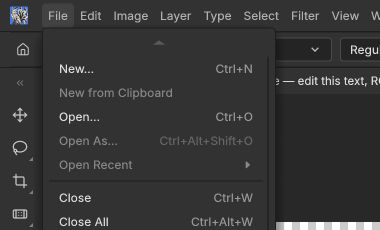
File > Open is inside PhotoCraft, not your browser's File menu. - Check what actually opened. Compare the canvas with the original, inspect the layer list, and check fonts, positioning and visible effects. Our verified PSD examples contain three layers including editable Inter Regular text. Your own PSD may differ.
- Export and verify a PNG. When you are happy with the result, choose File > Export > Quick Export as PNG. Open the downloaded PNG to confirm it contains the correct content. Keep the PSD source: PNG does not preserve its editable layer structure.
Want to change a text layer after opening the file? Follow the PSD text editing guide. For export screenshots and transparency checks, use the PNG export guide.
Try a PSD that has been tested
Our starter cover is a deliberately simple RGB PSD with a background, accent and editable title layer. Its headline was changed to FINAL CRAFT in the v0.10.0 regression on October 20, 2026, and again in a targeted PhotoCraft Web v0.20.2 Chromium check on November 6, 2026. These small sample tests do not guarantee arbitrary Photoshop documents.
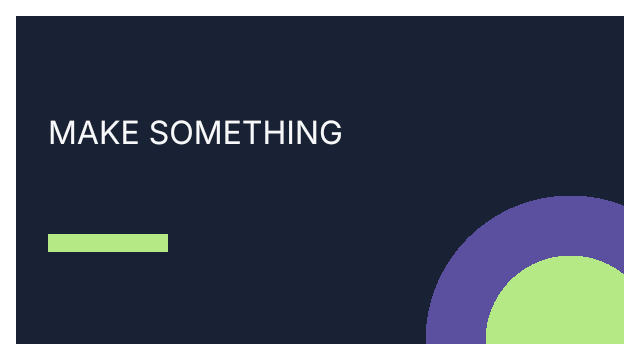

You can download all five practice files before trying a more complicated document.
PSD compatibility: tested versus unknown
| Task | What we have checked |
|---|---|
| Open a PSD | Three small, project-created RGB PSDs with three layers each. |
| Edit PSD text | Inter Regular title layers in those examples; actual PNG outputs checked. |
| Export | PNG download and decoded result, including transparency tests on PNG samples. |
| Complex Photoshop documents | Not verified here: smart objects, special fonts, complex masks, layer effects and color modes. |
| Save an editable PSD | Not verified for this browser site. Keep your original PSD. |
The bundled engine is PhotoCraft Web v0.20.2. See the versioned compatibility notes for the dates and limitations of our actual browser tests.
Open Photoshop files without installing Photoshop
A PSD is a layered Photoshop document, not simply a picture with a different extension. A normal image preview can hide text, masks, adjustment layers, or transparency. A browser PSD editor is useful when you need to inspect how a design is assembled or make a small change without installing desktop software. This is not a claim that every Photoshop feature is reproduced.
For the most predictable first test, use a small RGB document with ordinary raster layers and a common font. Larger documents, linked assets, advanced effects, or unusual color profiles can take longer to load and may not look identical to Photoshop. Compare the rendered image and layer panel with a reference before you make changes. If exact fidelity matters, keep using the original editor.
Can you edit PSD text and layers online?
Select a text layer in the layer panel, activate the Type tool, click the text on the canvas, and confirm the change using the editor toolbar. Missing fonts can change spacing and line breaks; a substituted font may make the title appear cropped or shifted. Zoom in and inspect the edges before exporting. You can follow ourstep-by-step text editing tutorialwith a small, known sample before modifying your own design.
Editing flattened artwork is different from editing actual PSD text. If the title was rasterized into pixels, selecting it will not turn it into an editable text layer. You may need the original layered source or a new text layer. Do not overwrite the source PSD while experimenting.
Preview your PSD and export a PNG
When you only need to share the visible design, use the PNG export command after opening the file. PNG is useful for previews, graphics, and transparency, but it does not preserve layers, editable text, masks, or Photoshop-specific effects. Open the downloaded PNG in a separate viewer to verify size, appearance, and transparent areas. If it looks different, return to your PSD copy and adjust the document rather than assuming the download is correct.
What about PSD files on mobile?
You can read this guide on a phone, but editing a layered PSD needs room for a canvas, toolbar, menus, and layer list. Touch controls, mobile memory limits, and browser graphics support are not covered by our tested desktop workflow. If the workspace is cramped or fails to start, use a desktop Chrome or Firefox browser before deciding the file itself is damaged.
If your PSD will not open correctly
Blank or stalled workspace
Check the editor's own startup message. The editor offers a WebGL fallback in its guide panel, but switching modes reloads the session: export any existing work first. Try a known-good sample to distinguish a startup problem from a problem with your particular PSD.
Missing fonts or different-looking layers
A PSD can load while looking different from Photoshop. Compare a screenshot of the original, try the included Inter example, and avoid overwriting the source. We have not tested every font, mask, smart object or effect in the Web build.
Need only a quick preview?
PhotoCraft opens a full editing workspace, which may take longer to start than a dedicated PSD viewer. If you only need to inspect a thumbnail, a lightweight viewer may be more suitable. This page is for people who also want the option to inspect layers and export PNG.
Frequently asked questions
Can I open a PSD file online without Photoshop?
Yes. The PhotoCraft Web editor on this page can open local PSD files using File > Open. Check the result carefully: complex Photoshop documents may render differently.
Can I edit text layers in a PSD?
You can try the Type tool on an editable text layer. We have verified this with small example PSD files, but fonts, text effects, and advanced PSD features may not behave exactly as in Photoshop.
Can I open a PSD on my phone?
The page is accessible on mobile, but real mobile editing has not been validated. A desktop browser with a larger screen is recommended for layered documents.
How do I convert an opened PSD to PNG?
After inspecting your file, choose File > Export > Quick Export as PNG in the editor, then open the downloaded PNG and check its appearance. PNG does not keep editable PSD layers.
What if my PSD layers, fonts, or effects look wrong?
Keep the original PSD, compare against a Photoshop reference, and try a small sample first. Some smart objects, masks, unusual fonts, and effects have not been verified in this browser build.
Is my PSD uploaded to PhotoCraftTools?
The editor is designed to open your selected local file in your browser, not send it to a PhotoCraftTools file-processing server. Avoid sharing sensitive documents until you are comfortable with the source and browser behavior.
Ready to open your file?
Use the live editor on this page, select File > Open, and inspect your file before exporting. Try our tested example or a copy of your own PSD.
PhotoCraftTools is an independent tools site, not the official PhotoCraft or ArtCraft project. We do not distribute a modified desktop installer. For the upstream source and releases, visit the official PhotoCraft GitHub repository.